Basics
Installation
Install Fyolo on macOS with Homebrew and keep it current with brew upgrade — no account or license key required.
Fyolo runs on Apple silicon and Intel Macs from the same build. Installation is one Homebrew command — there’s no account to create and no license key to enter.
Before you begin
Fyolo needs macOS 14 or later, on Apple silicon or Intel. It hosts the agent CLIs you already have installed — it doesn’t bundle them.
What you need
| macOS | 14 (Sonoma) or later, Apple silicon or Intel — one universal build |
| Homebrew | brew.sh, or download the disk image instead |
| An account | None. There is no sign-in, no license key, and no payment backend |
| Agent CLIs | Whichever you already use — claude, codex, and the rest. Fyolo hosts them, it doesn’t ship them |
| For another machine | Anything you can already ssh to. Fyolo reads your ~/.ssh/config and installs nothing as root |
Install with Homebrew
brew install --cask fl0wo/tap/fyoloHomebrew downloads the latest release from GitHub, puts Fyolo in your Applications folder, and clears the quarantine flag macOS sets on downloads. Fyolo is ad-hoc signed rather than notarized by Apple, so without that step Gatekeeper would refuse to open it.
Check it worked
Launch Fyolo and you should land on the welcome screen with Open Project as the primary action. That’s the whole install — there is no setup wizard, no account step, and nothing to configure before the first session.
On first launch Fyolo asks once whether to let your agents coordinate — that’s
Session control, which installs a small skill teaching them the
fyolo sessions commands. Live agent status, the hooks behind the sidebar’s
status dots, is a separate switch on the same tab; the sidebar offers it when it
sees an agent running. Both are optional and reversible; see Status hooks &
session control.
If you already use Ghostty, there’s nothing to pick: Fyolo
reads your ~/.config/ghostty/config on first launch and starts with the font and
theme you chose there.
Download the disk image instead
If you’d rather not use Homebrew, every release attaches the disk image to its GitHub release.
- Download
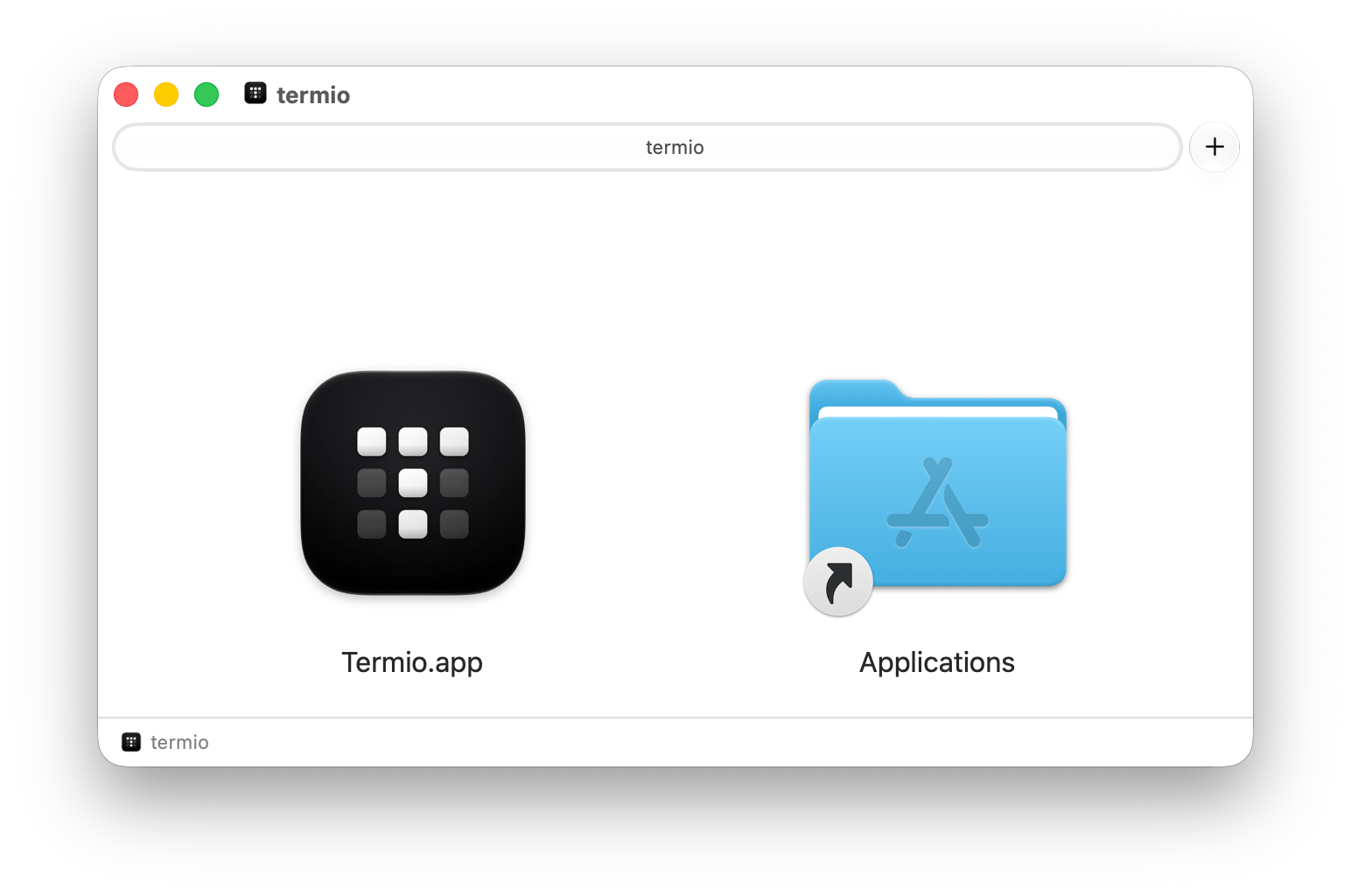
fyolo.dmgfrom the latest release. - Open it and drag Fyolo into your Applications folder.
- Launch it. The first time, macOS blocks it because the app isn’t notarized:
open System Settings ▸ Privacy & Security and click Open Anyway next
to the message about Fyolo. Running
xattr -dr com.apple.quarantine /Applications/fyolo.appdoes the same.
Staying up to date
brew upgrade --cask fyoloFyolo doesn’t update itself. Each release bumps the Homebrew cask, so a
brew upgrade moves you to the newest version along with everything else you
installed with Homebrew. If you installed the disk image, download the new one
from GitHub and replace the app.
Bring your own agents
Fyolo doesn’t bundle the coding agents — it hosts the ones you already have on
your Mac. Install whichever CLIs you use (for example claude, codex, or
amp) and make sure they’re on your PATH. Fyolo launches each one in a
login shell, so anything your shell profile sets up will be available.
Once an agent is installed, it shows up as a launchable option when you start a session. The same is true of the agents on another machine — Fyolo looks for them there and installs its hooks on that box. See Devices.
The fyolo command (optional)
Fyolo ships a small command-line tool. Open Settings ▸ Server
and turn on Command-line tool to symlink fyolo onto your PATH. From then on
fyolo in any directory opens it as a project, and fyolo sessions … lets your
agents coordinate with each other. It’s entirely optional — see
Session control & the CLI.
Where Fyolo keeps things
Nothing is hidden, and nothing lives on a server of ours:
| Path | What’s in it |
|---|---|
~/.fyolo/ | Your config: keybindings.json, custom agent manifests under config/agents/, and the chats/ scratch directory |
~/Library/Application Support/fyolo/ | App state and your Themes/ folder |
~/.local/bin/ | The session host on machines you set up over SSH — fyolod, plus fyolo on Linux. On this Mac it ships inside the app bundle and is never installed here |
| Each agent’s own config | Fyolo’s status hooks and its fyolo skill, written per agent |
Uninstalling
Quit Fyolo and run brew uninstall --cask fyolo, or drag it to the Trash if you
installed the disk image. To remove what it wrote outside the bundle,
turn off Live agent status and Session control under Settings ▸ Agents
first — both toggles remove the hooks and the skill they installed on this
Mac, leaving anything you wrote yourself alone. Then delete ~/.fyolo and
~/Library/Application Support/fyolo if you want the state gone too.
Every other machine keeps what was installed on it until you clean it up there. Stop the server first, because removing the service alone leaves a daemon that something else started still running:
fyolod stop
fyolod service uninstall
rm -f ~/.local/bin/fyolod ~/.local/bin/fyolo