Agents
Custom agents
Teach Fyolo about any CLI by dropping a small JSON manifest in ~/.fyolo/config/agents — give it a name, an icon, and live status detection, and it becomes a first-class agent alongside the built-ins.
Fyolo ships with the common coding agents built in, but the catalog is open: any command-line tool can become a first-class agent. You describe it in a small JSON manifest, and from then on it appears in the new-session menu, the Settings ▸ Agents list, and the sidebar with its own name, icon, and live status — exactly like Claude Code or Codex.
You don’t need a manifest to run an arbitrary CLI — you can always launch a plain shell and run it there. A manifest is what promotes it to a real agent with an icon and status detection.
Add an agent
Drop a JSON file into your config folder, named after the agent’s id:
~/.fyolo/config/agents/<id>.jsonA minimal manifest needs only an id, a name, and the command to launch:
{
  "id": "myagent",
  "name": "My Agent",
  "command": "myagent --fancy"
}
Fyolo reads the folder at launch and again whenever you bring the app forward with Agents settings open, so a new manifest usually appears without a restart. The agent then shows up wherever you start a session; enable or reorder it from Settings ▸ Agents like any other.
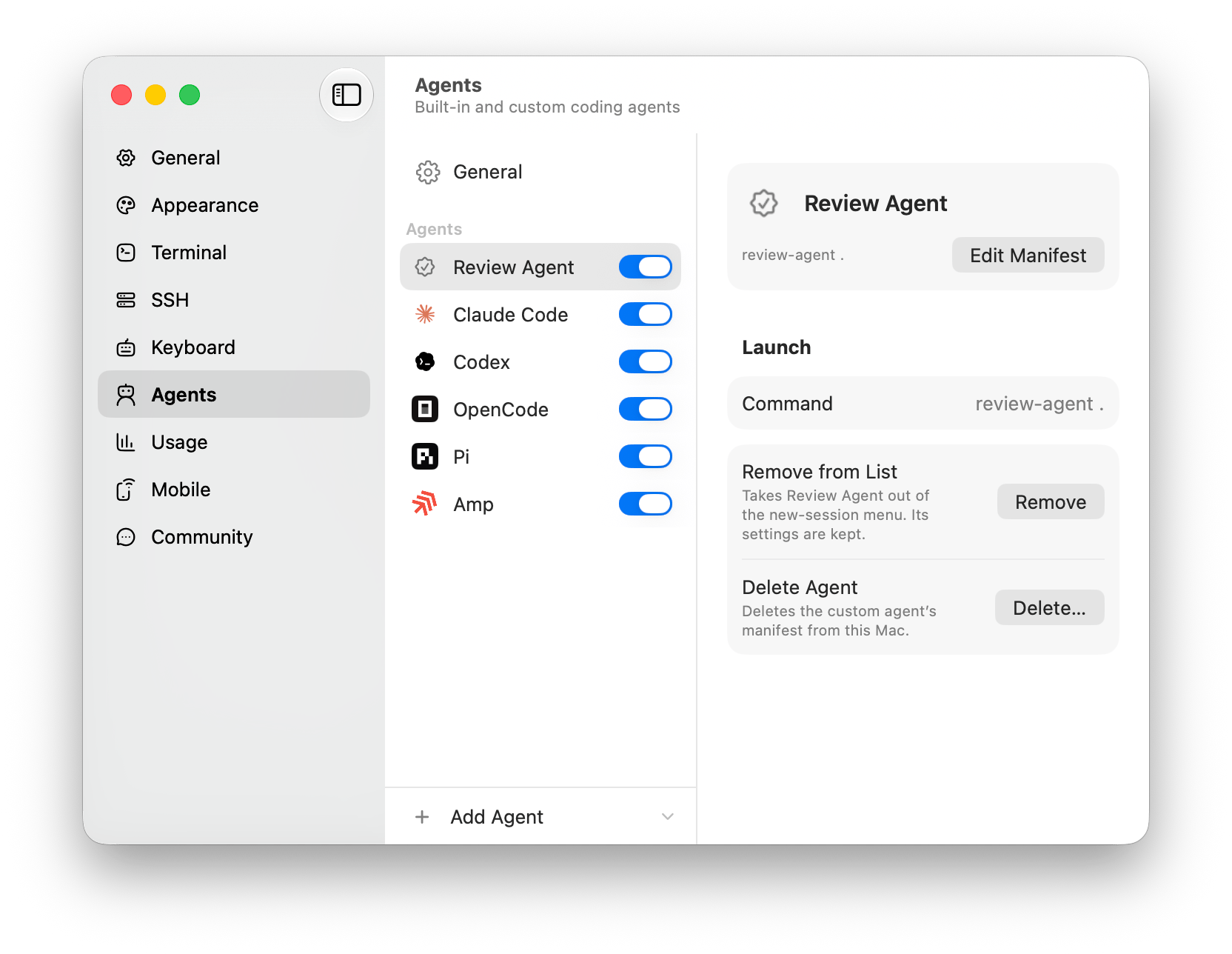
Where its CLI lives is a fact about a machine, so the command path is one row per machine: open the agent under Settings ▸ Agents and its Launch section lists every machine you have, each with its own path field. See Remote hosts for the same rows read from a machine’s side.
Use a built-in’s id (for example claudeCode) as your filename to override
it — handy for launching Claude Code through a wrapper script while keeping its
icon and hooks.
Manifest fields
| Field | Required | Meaning |
|---|---|---|
id | ✓ | Stable slug and persistence key (letters, digits, -, _, .). |
name | ✓ | Display name in menus and the sidebar. |
command | The program and arguments to launch. Omit it to open your login shell. The binary must be on your PATH. | |
icon | An icon — see below. Defaults to a generic glyph. | |
status | Screen-scrape rules for live status — see below. | |
resume | How a reopened session continues its exact conversation — an object of launch-argument templates and a session-store descriptor. See the Agent Terminal Protocol. Omit it and every launch starts fresh. | |
permissionBypassFlag | A flag appended when you toggle “skip permission prompts” for this agent. | |
tint | A hex color (e.g. "#14B8A6") used to tint the “working” spinner. |
Icon
Point at an SF Symbol, or an image dropped alongside the manifest:
"icon": { "symbol": "sparkles" }"icon": { "path": "myagent.png" }For path, put the image file next to the .json in the same folder.
Live status
If your agent doesn’t ship a hook system, Fyolo can still read its status by
matching regular expressions against the terminal screen. List patterns that mean
“busy” under working and patterns that mean “waiting on you” under attention:
"status": {
  "working": ["thinking", "Running"],
  "attention": ["approve\\?", "Continue\\? \\(y/n\\)"]
}
A line matching attention flips the session to needs you (the key keeps the
protocol’s name; it wins over working, since a prompt can sit under a
still-spinning header); a line matching working marks it working. See the
sidebar status reference for what each state means.
Agents that ship their own hook system (like the built-ins) get more precise
status through hooks instead of screen-scraping. That path is covered under
Session control — for a custom agent, the status
regex above is the simplest route.
Running multiple agents
Keep a fleet of agents side by side, read their live status at a glance, and know which signal each agent reports through — the program status protocol, hooks, its terminal title, or the screen as a last resort.
Status hooks & session control
The two opt-in switches behind the sidebar’s live statuses — hooks that let agents report what they’re doing, and the skill that teaches them to drive sibling sessions.